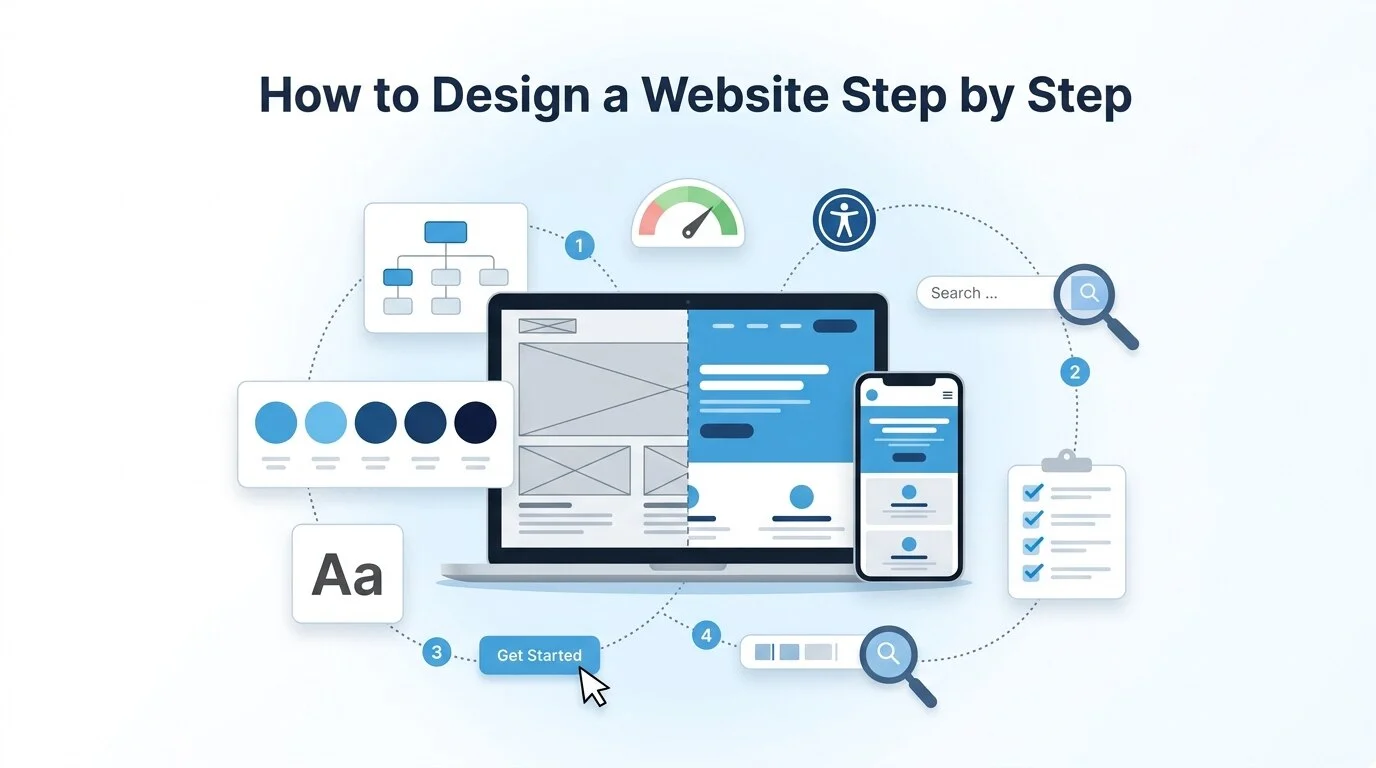
To design a website, you set a clear goal, plan your pages, and pick a platform. Then you sketch a layout, choose your brand colors and fonts, and write content that guides visitors to act. After that, you make the site mobile friendly, fast, and accessible, add basic SEO, and test it before launch. You can do all of this yourself, or hand the build to a team that offers web design and development services.
You do not need to know code. Today's website builders and CMS tools handle most of the technical work. This guide explains each step in plain language. You will also find common beginner mistakes, typical costs, and signs that it is time to get professional help.
Here are the 10 steps at a glance:
- Define your website's goal and audience
- Plan your pages with a simple sitemap
- Choose a platform, domain, and hosting
- Sketch a wireframe and layout
- Set your brand colors, fonts, and images
- Write and place your content
- Design mobile-first and keep it fast
- Make your website accessible
- Build in SEO basics from day one
- Test, launch, and measure
What Website Design Includes (and What It Doesn't)
Website design is how a site looks and how easy it is to use. It covers layout, colors, fonts, images, and navigation.
Web development is the code that makes the design work. Developers build the pages, forms, and features that run behind the scenes.
Most beginners only need design skills, because website builders write the code for you. If you want to understand the technical side too, start with these web development basics.
Step 1: Define Your Website's Goal and Audience
Start with one question: what should a visitor do on your site?
Pick one main action. For example:
- Buy a product
- Book a call
- Fill in a contact form
- Sign up for a newsletter
Next, picture who will visit. Write down who they are, what problem they have, and what they need to see before they trust you.
This goal shapes every choice you make later. A portfolio needs large images. A local service business needs a phone number people can tap. An online store needs clear product pages and an easy checkout.
Step 2: Plan Your Pages with a Simple Sitemap
A sitemap is a list of your pages and how they connect. Plan it before you design anything.
Most small websites need these core pages:
- Home
- About
- Services or Products
- Contact
- Blog (optional, but useful for SEO)
Keep your main menu short. Five to seven items is easy for people to scan. Group related pages under one parent page. For example, put each service page under "Services."
This kind of planning is called information architecture. A clear structure helps visitors find things fast. It also helps search engines understand which pages matter most.
Step 3: Choose a Platform, Domain, and Hosting
Your platform is the tool you use to build the site. Pick the one that fits your goal and your skill level.
| Option | Best for | Skill needed | Flexibility | Typical cost |
|---|---|---|---|---|
| WordPress (CMS) | Blogs, business sites, sites that will grow | Low to medium | Very high | Free software, plus hosting and themes |
| Wix or Squarespace | Small business and personal sites | Low | Medium | Monthly plan |
| Shopify | Online stores | Low | High for ecommerce | Monthly plan plus payment fees |
| Webflow or Framer | Design-focused sites | Medium | High | Monthly plan |
| AI website builders | Fast first drafts | Very low | Low to medium | Free to monthly plan |
If you are reading older guides, be careful with Weebly. Square now points new users to Square Online instead, and Weebly has closed sites in a number of countries.
For a closer look at each tool, see our list of the best CMS and website builders.
Should You Use an AI Website Builder?
AI builders create a draft site from a short text prompt. They choose a layout, write starter text, and add images in a few minutes.
They work well for testing an idea or getting a simple site live fast. They are weaker at unique design and original writing. Treat the AI version as a first draft. Rewrite the text in your own words and swap stock images for real ones where you can.
Pick a Domain Name
Your domain is your web address. Keep it short, easy to spell, and close to your brand name. Avoid hyphens and numbers, since people forget them.
A .com is still the safest choice for a global audience. Country endings like .co.uk make sense if you only serve one country.
Choose Your Hosting
Hosting is where your website's files live. Website builders include hosting in their plans. With WordPress, you choose a host yourself.
Shared hosting is the cheapest option and is fine for most new sites. As your traffic grows, you can move to VPS or managed hosting. You can compare each option in our guide to the types of web hosting.
Make sure your plan includes an SSL certificate. It adds the padlock and "https" to your address. Browsers warn visitors about sites that don't have one.
Step 4: Sketch a Wireframe and Layout
A wireframe is a simple sketch of a page. It shows where things go, without colors or images. You can draw it on paper or use a free tool like Figma.
Start with the top of each page. Visitors see this area first, so put your main message and main button there.
A few layout rules help every beginner:
- Make the most important item the biggest and boldest. This is called visual hierarchy.
- Keep the menu in the same place on every page.
- Leave white space between sections so the page can breathe.
- Put key content where eyes go first.
That last point is backed by eye-tracking research from Nielsen Norman Group. People often scan web pages in an F-shaped pattern. They read across the top, then move down the left side.
Choosing a Template
Once you have a wireframe, pick a template that matches it. Don't choose a template first and squeeze your content into it.
Before you commit, preview the template on a phone. Also check that it gets regular updates and loads quickly.
Step 5: Set Your Brand Visuals: Colors, Fonts, and Images
Your visuals should look the same everywhere your brand appears. That includes your website, social profiles, and printed materials.
Colors
Pick one main color and two or three supporting colors. Use the main color for buttons and important links, so they stand out.
Check the contrast between text and background. Light grey text on a white background is a common mistake. It looks clean but is hard to read.
Fonts
Use two font families at most: one for headings and one for body text. Choose fonts that are easy to read on small screens. A body text size of about 16 pixels is a good starting point.
Images
Real photos of your team, work, or products build more trust than generic stock photos. Compress every image and use modern formats like WebP. Large images are one of the most common reasons pages load slowly.
Step 6: Write and Place Your Content
Write your content before you finish the design. Real text shows you how much space each section needs.
Good website content is easy to scan. Follow these habits:
- Use a headline that says what you do in plain words.
- Keep paragraphs to two or three sentences.
- Add subheadings so people can jump to what they need.
- Give each section one clear call to action, like "Get a quote" or "Book a call."
- Answer the questions your customers ask most.
Write for people first. Use the words your customers use, not industry terms. Search engines understand plain language well.
Step 7: Design Mobile-First and Keep It Fast
More than half of all web traffic now comes from phones. So design for small screens first, then expand the layout for desktop.
A mobile-first design has:
- Buttons large enough to tap with a thumb
- A menu that opens easily
- Text you can read without zooming
- No pop-ups that cover the content
Speed matters just as much. Google measures page experience with three metrics called Core Web Vitals. You can read the full details in Google's Core Web Vitals guide.
- LCP (Largest Contentful Paint): how fast the main content shows up. Aim for under 2.5 seconds.
- INP (Interaction to Next Paint): how fast the page responds to taps and clicks. Aim for under 200 milliseconds.
- CLS (Cumulative Layout Shift): how much the layout jumps while it loads. Aim for under 0.1.
For quick speed wins, compress images and lazy load the ones lower on the page. Limit heavy plugins and scripts, and turn on caching.
Step 8: Make Your Website Accessible
An accessible website works for everyone. That includes people who use screen readers, keyboards, or screen zoom. Accessible sites also tend to be easier for all visitors to use.
The global standard is the Web Content Accessibility Guidelines (WCAG) 2.2. For many businesses that sell to people in the EU, accessibility is also a legal requirement. The European Accessibility Act took effect in June 2025.
Start with these basics:
- Use strong color contrast.
- Add alt text to every meaningful image.
- Make sure every feature works with a keyboard alone.
- Show a visible outline on links and buttons when they are selected.
- Label every form field.
- Use clear link text instead of "click here."
- Add captions to videos.
Build accessibility into the design from the start. A plugin widget added later cannot fix a site that is built badly underneath.
Step 9: Build In SEO Basics From Day One
SEO is much easier to build in now than to add later. These basics help Google and AI search tools understand your pages.
- Write a unique title tag for every page, with the main topic near the start.
- Write a short meta description that tells searchers what they will get.
- Use one H1 per page, then H2 and H3 headings in a logical order.
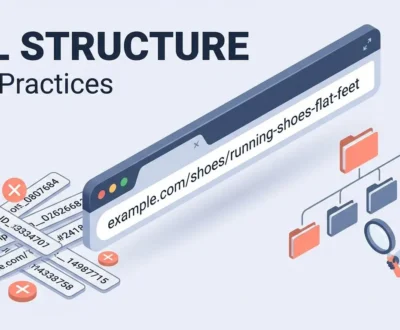
- Keep URLs short and readable, like /services/logo-design/.
- Describe each image in its alt text.
- Link related pages using descriptive anchor text.
Show visitors who is behind the site. Add an About page, author names, and real contact details. Google looks for these trust signals as part of E-E-A-T, which stands for experience, expertise, authoritativeness, and trustworthiness.
Clear structure also helps with AI search. Google's AI Overviews and other AI assistants read pages much like search engines do. Clear headings and direct answers make your content easier for them to understand and cite.
Step 10: Test, Launch, and Measure
Test everything before your site goes live. Use this checklist:
- Every link works.
- Forms send messages to the right inbox.
- Pages look right on phone, tablet, and desktop.
- Pages pass a speed test, such as Google PageSpeed Insights.
- The site passes a basic accessibility check.
- SSL is active and the address shows "https."
- A favicon and a custom 404 page are in place.
- Spelling and contact details are correct.
Then ask someone who has never seen the site to do a simple task, like finding your phone number. Watch where they get stuck and fix it.
After launch, keep track of how the site performs:
- Connect Google Search Console and submit your XML sitemap.
- Set up Google Analytics 4 to track visits, engagement, and conversions.
- Use a heatmap tool to see where people click and how far they scroll.
Review your numbers once a month. Improve the pages where people leave or stop. A good website keeps changing as you learn what visitors need.
Common Website Design Mistakes Beginners Make
Most beginner mistakes are easy to avoid once you know them:
- Using too many fonts and colors
- Cramming everything onto the homepage
- Uploading huge, uncompressed images
- Leaving out a clear call to action
- Designing only for desktop
- Showing pop-ups that block content on phones
- Using low-contrast text
- Hiding contact details deep in the site
Small touches can help, too. Hover effects and button animations, called microinteractions, make a site feel polished. Use them lightly. A chatbot can answer common questions, but don't use it to hide a way to reach a real person.
When to Hire a Web Designer Instead
A DIY site works well for simple needs. It makes sense to hire help when:
- You need custom features, like bookings, member areas, or software integrations.
- You run a large online store with many products.
- You are launching a brand and the first impression matters.
- You don't have time to learn and maintain the site.
A good designer brings a mix of skills, including user experience, visual design, basic code, and SEO awareness. Knowing the essential web designer skills helps you judge who to hire, or what to learn if you want to do it yourself.
Frequently Asked Questions
How much does it cost to design a website?
It depends on who builds it. A DIY site on a website builder can cost nothing on a free plan, or up to a few hundred dollars a month on advanced plans. Freelancers often charge from about $500 to $10,000 or more. Agency projects usually start in the low thousands and go higher for complex sites. Add a domain name, which often costs around $10 to $20 a year.
How long does it take to design a website?
A simple site on a website builder can go live in a day or a weekend. A custom business site usually takes several weeks. Large stores or sites with custom features can take a few months.
Can I design a website for free?
Yes. Many builders, such as Wix and WordPress.com, offer free plans. Free plans usually show the builder's branding and give you a subdomain instead of your own address. For a professional site, you will need a paid plan and a custom domain.
Can AI design a website for me?
Yes, AI website builders can create a working draft in minutes. You will still need to edit the text, add real images, and check the layout. Original content is what makes your site stand out.
Should I use WordPress or a website builder?
Choose a website builder if you want the easiest setup and don't need many custom features. Choose WordPress if you want full control, plan to grow, or need a lot of plugins. WordPress takes a little more effort, because you manage hosting, updates, and security yourself.
Do I need to know coding to design a website?
No. Website builders and WordPress themes let you design with drag-and-drop tools. Basic HTML and CSS knowledge helps with small fixes, but you can launch a full site without it.
Ruth Carol is a professional SEO expert providing services concerning to search engine optimization process. She has 10 years long experience with vast knowledge in the field of modern search engine optimization process and is continuing. Her educational background, along with her working experience in this field, enables her to gain ample knowledge in this subject area. She was an active volunteer in google serve program and a regular blog writer subjecting SEO optimization process and special tips. Follow her blogs on seoviser. Besides, she is an active member of the Chang Mei International SEO Conference. Furthermore, she is the founder of SEO Viser, which is an SEO agency providing SEO solutions all over the world. She aims to help companies ranging from small to big to develop a long-lasting solution to rank their site. Apart from that, she provides consultancy services related to search engine optimization and contributing to social media and online platforms like Fiverr, Upwork, etc. To know more about her services and anyone can visit seoviser or simply email her through her website. She is a great mind and loves to share knowledge. Contact her at seoviser.
OUR SERVICES

Request a free quote
We offer professional SEO services that help websites increase their organic search score drastically in order to compete for the highest rankings even when it comes to highly competitive keywords.
More from our blog
See all posts