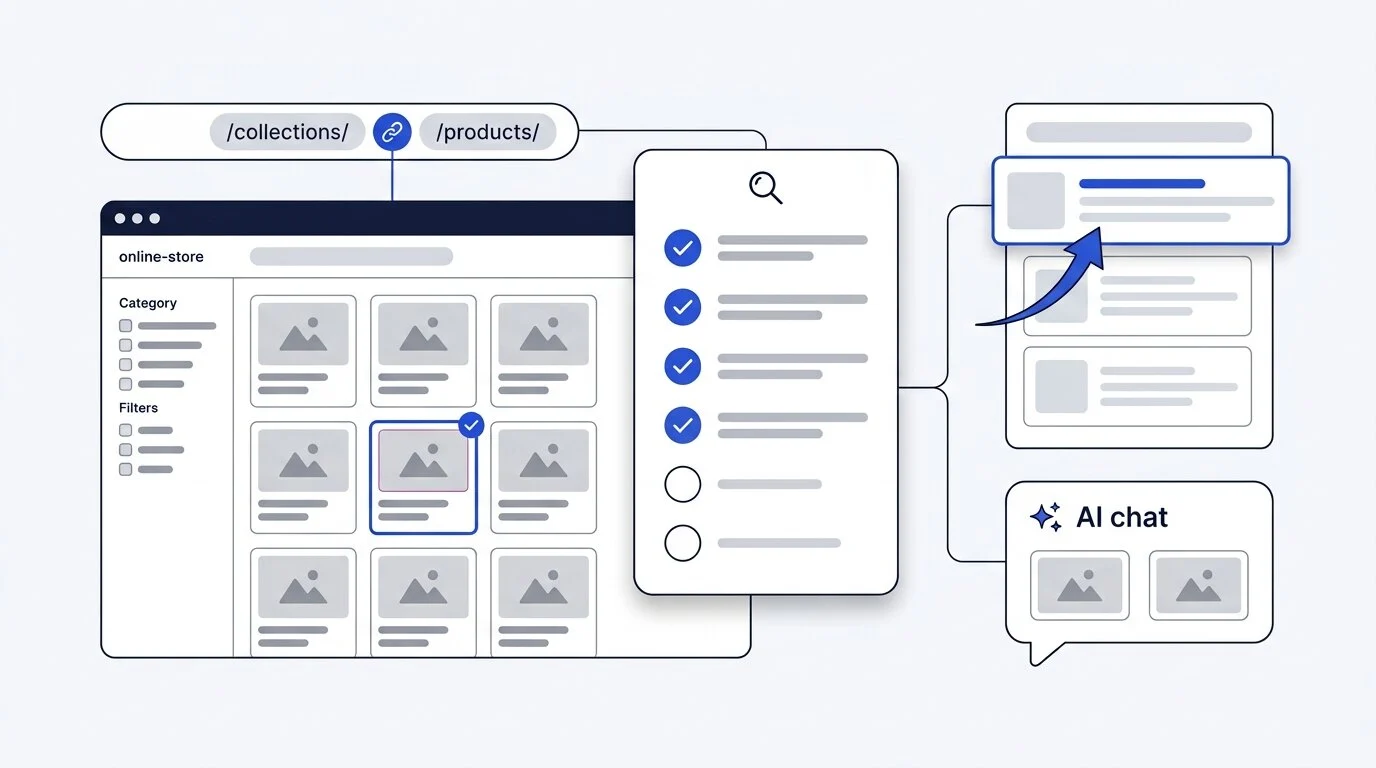
A Shopify SEO checklist is the short list of things you have to do yourself, because Shopify will not do them for you. The platform gives you a sitemap, canonical tags, SSL, and a mobile-ready theme on day one. It does not write your collection descriptions, fix your duplicate URLs, add your product schema, or get your catalog in front of an AI shopping assistant. That gap is the whole job, and it is smaller than most beginners fear. If you would rather hand the work to someone who does this every day, our Shopify SEO services cover every step below.
This guide is written for a store owner who has already made their Shopify store live and has products published but little or no search traffic. Work through it in order. Each step builds on the one before it.
Here is what the checklist covers:
- What Shopify handles automatically, and what it leaves on your plate
- Connecting Search Console and GA4 so you have real data
- Fixing indexing problems and keeping junk pages out of Google
- Shopify's duplicate URL problem, explained simply
- Keyword research that starts with collections, not products
- Collection page optimization, the highest-return work on any store
- Product pages, titles, meta descriptions, and alt text
- Product schema and how to confirm it works
- Page speed and Core Web Vitals
- Content that feeds your catalog instead of sitting beside it
- Getting your products into ChatGPT, Gemini, Copilot, and Google AI Mode
- Links, mentions, and what to measure each month
The Shopify SEO checklist at a glance
Here is the full list. Each item is explained in detail below.
- Verify Google Search Console and connect GA4
- Submit your sitemap and check the Pages report for indexing errors
- Keep tag pages, vendor pages, and internal search results out of the index
- Make every internal link point to the clean
/products/URL - Research category keywords before product keywords
- Write unique copy for every collection page that matters
- Give each product a short handle, a real title, and original description copy
- Write a unique meta title and description for every page
- Rename image files and write honest alt text
- Add Product, Offer, and BreadcrumbList schema, then validate it
- Audit your installed apps and fix your Core Web Vitals
- Publish buying guides that link into collections
- Turn on and tidy up your agentic storefront data
- Earn links from manufacturers, reviewers, and real publications
- Review Search Console monthly and audit the store quarterly
What Shopify does automatically, and what it leaves to you
Shopify's technical baseline is good. Knowing which parts are already covered saves you from wasting weeks on work that is already done.
| Shopify handles this | You still have to handle this |
|---|---|
Generates sitemap.xml and updates it as you add products |
Checking that your important pages are actually indexed |
| Adds canonical tags to duplicate product URLs | Making your internal links agree with those canonicals |
Creates a robots.txt file, editable through robots.txt.liquid |
Deciding what should and should not be crawled |
| Enforces HTTPS across the storefront | Page speed once apps and images pile up |
| Ships responsive, mobile-ready themes | Collection and product copy, which starts empty |
| Produces clean URL handles from your titles | Schema completeness and accuracy |
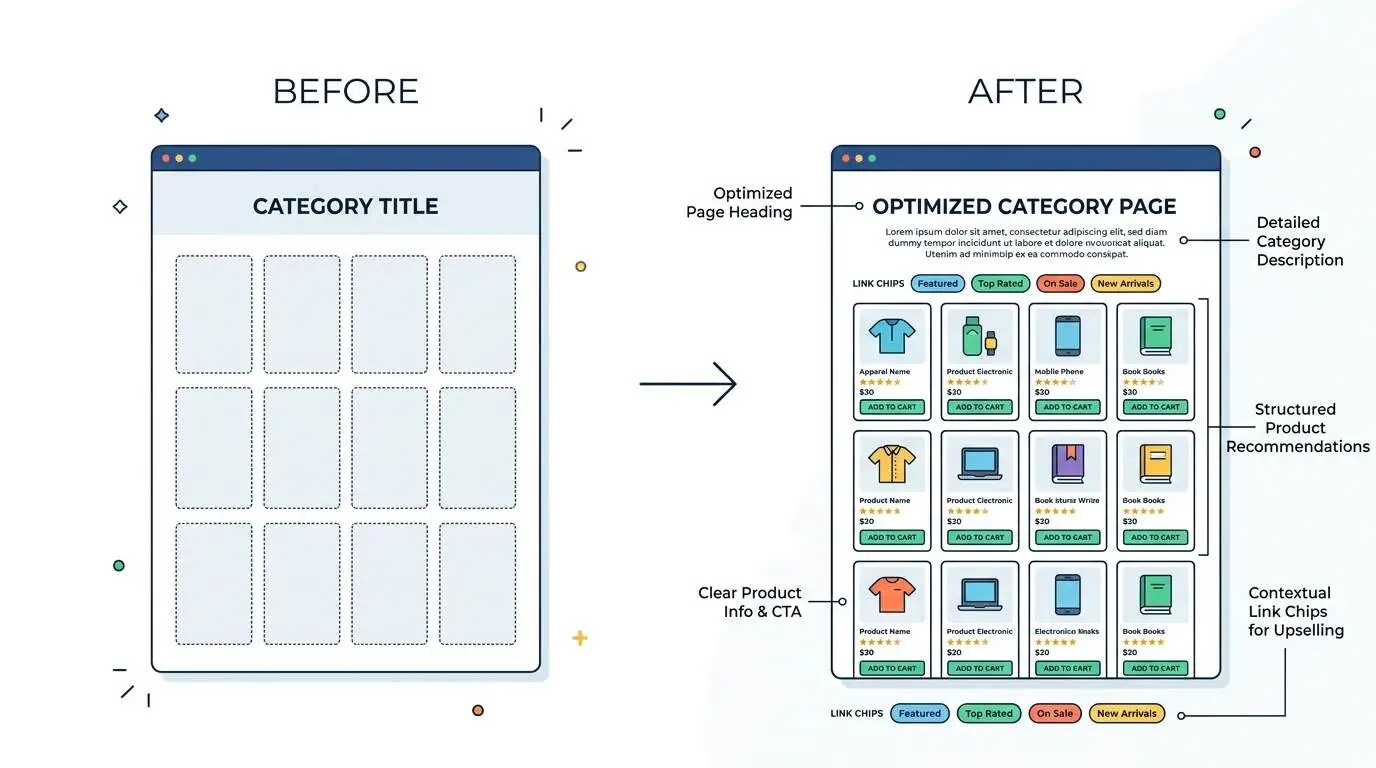
Two limits are worth knowing before you start. First, Shopify forces the URL prefixes /products/, /collections/, /pages/, and /blogs/, and you cannot remove them. Google ranks Shopify stores at the top of competitive searches every day with those paths, so do not try to work around them with redirects. Second, collection pages arrive as a bare grid of products with no words on them. That is where most of your opportunity sits.
Step 1: Connect Search Console and GA4 first
Set up your measurement tools before you touch a single page. Without query data, every decision after this is a guess.
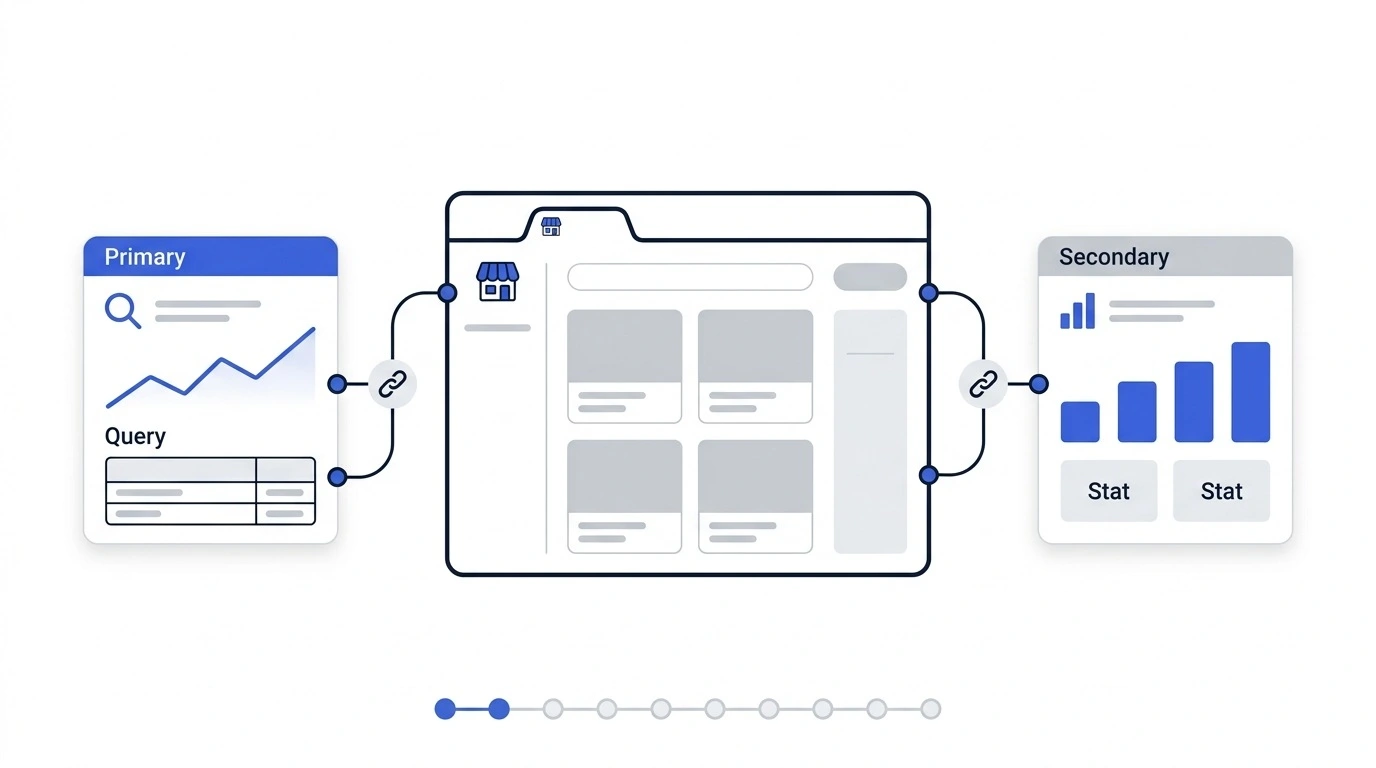
Google Search Console
Verify your domain, then submit your sitemap under Indexing > Sitemaps. Your sitemap URL is always yourstore.com/sitemap.xml. Search Console is the only free source of the actual searches that bring people to your store, which pages Google has indexed, and which ones it skipped.
Google Analytics 4
Connect GA4 through the Shopify admin. It tells you which landing pages lead to sales, which is how you decide what to optimize first. Shopify's built-in analytics covers revenue and conversion, but it will not show you search queries.
Give both tools a week to collect data before you draw conclusions from them.
Step 2: Fix indexing and crawlability
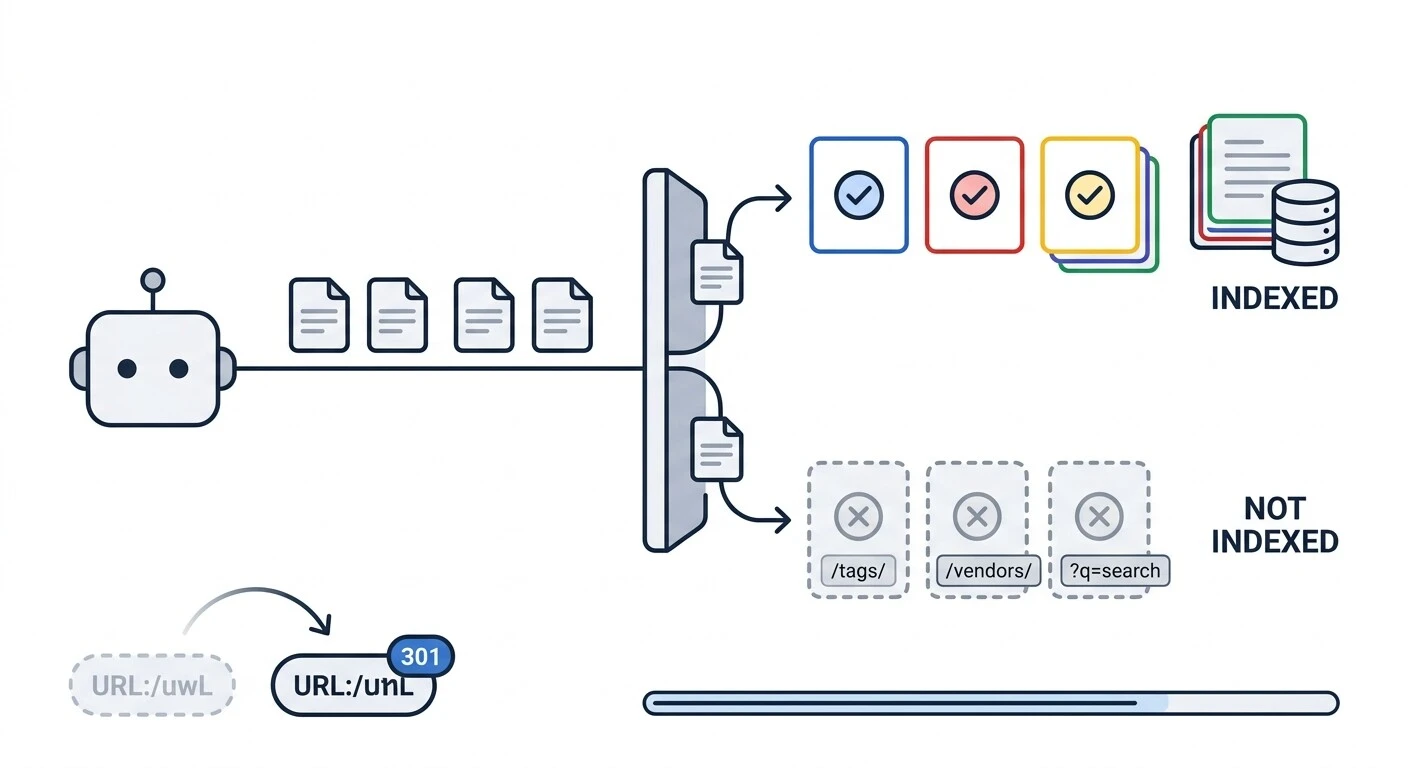
A page that Google has not indexed cannot rank, no matter how well it is written. Start in Search Console under Indexing > Pages.
Look for two statuses in particular. "Discovered, currently not indexed" usually means Google found the URL and decided it was not worth crawling yet, which often points at thin content. "Crawled, currently not indexed" means Google read the page and passed on it, which usually points at duplication or weak content.
Keep these out of the index:
- Tag pages and vendor pages, which Shopify creates automatically and which overlap with your real collections
- Internal search result pages
- Cart and checkout pages, which Shopify already blocks by default
Leave robots.txt alone unless you have a specific problem to solve. Shopify lets you edit it through robots.txt.liquid, but editing it because a checklist told you to is a common way to block something important by accident. If you want to understand the syntax before you touch it, read our guide to robots.txt for SEO.
Set up redirects when handles change. If you rename a product or collection, Shopify changes the URL, and the same applies when you change your Shopify store name and your page titles and handles change with it. Go to Online Store > Navigation > URL Redirects and point the old path at the new one. Skipping this breaks indexed pages and wastes the links pointing at them.
Step 3: Understand Shopify's duplicate URL problem
This is the most common technical issue on the platform, and almost no beginner guide explains it properly.
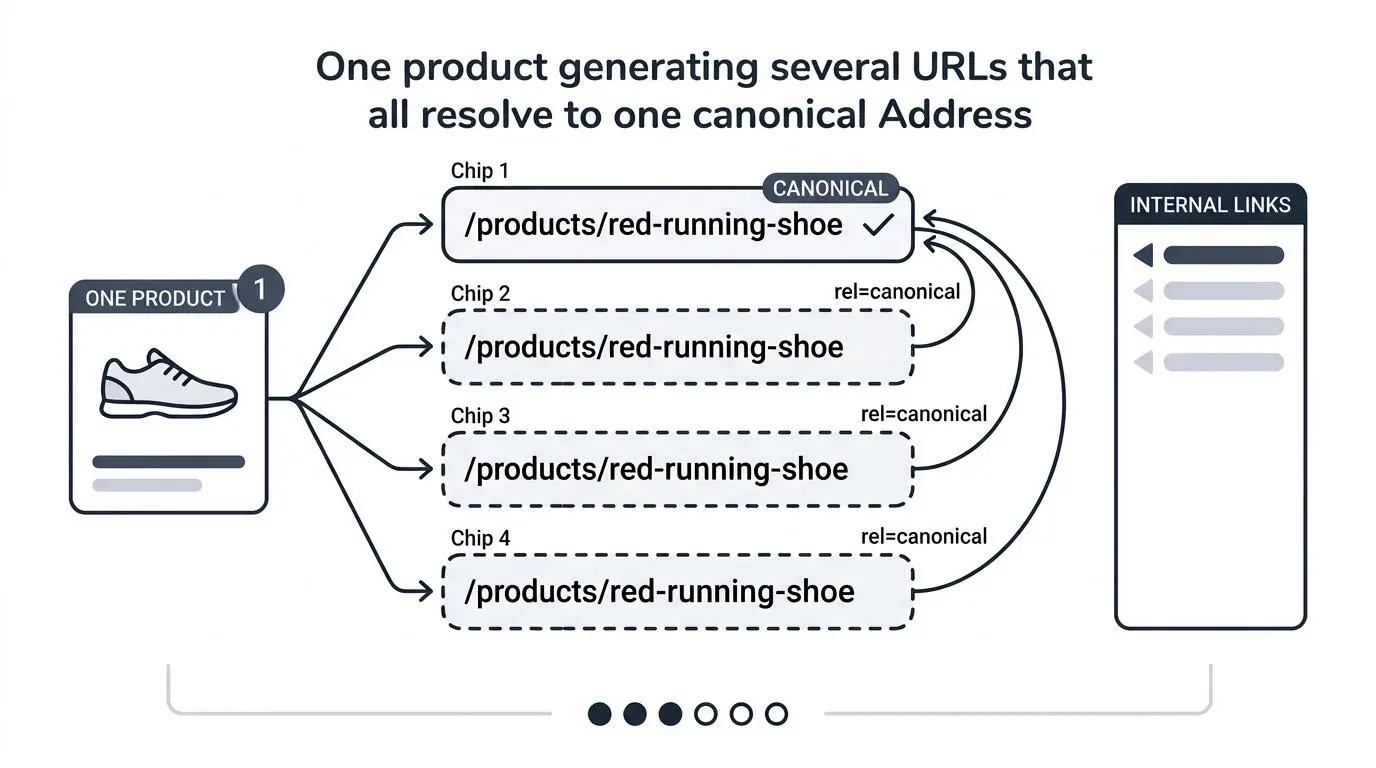
When a product sits in a collection, Shopify generates a second URL for it. Your red running shoe becomes available at both:
/products/red-running-shoe/collections/sale/products/red-running-shoe
Put it in three collections and you have four URLs for one product. Shopify adds a canonical tag on the collection-path versions that points back to the clean /products/ URL, which is the correct behaviour. The problem is that the duplicate paths stay crawlable. Google still visits them, which spends crawl budget on pages you do not want ranked.
Variant and filter URLs
Every variant adds a ?variant=123456789 parameter to the URL. Colour and size filters on collection pages add their own parameters, like /collections/jackets?color=black. Shopify canonicalizes these back to the parent page automatically. You do not need an app to fix this.
The one thing you should actually do
Make your internal links consistent. Links from your navigation, your collection pages, and your blog posts should all point at the clean /products/ URL, not the collection path. Shopify's canonical tag is a signal, and your internal links either back it up or fight it.
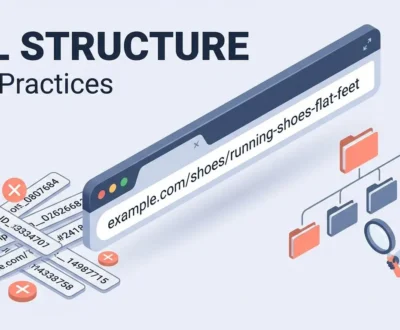
If you want to go deeper on how the platform's paths work and where you still have control, read our breakdown of Shopify URL structure.
How to check a canonical tag in 30 seconds
Open a product page, view the page source, and search for rel="canonical". The URL inside it should be the /products/ version. Do this on one product, one collection, and one blog post. If all three are correct, your theme is fine.
Step 4: Research keywords for collections before products
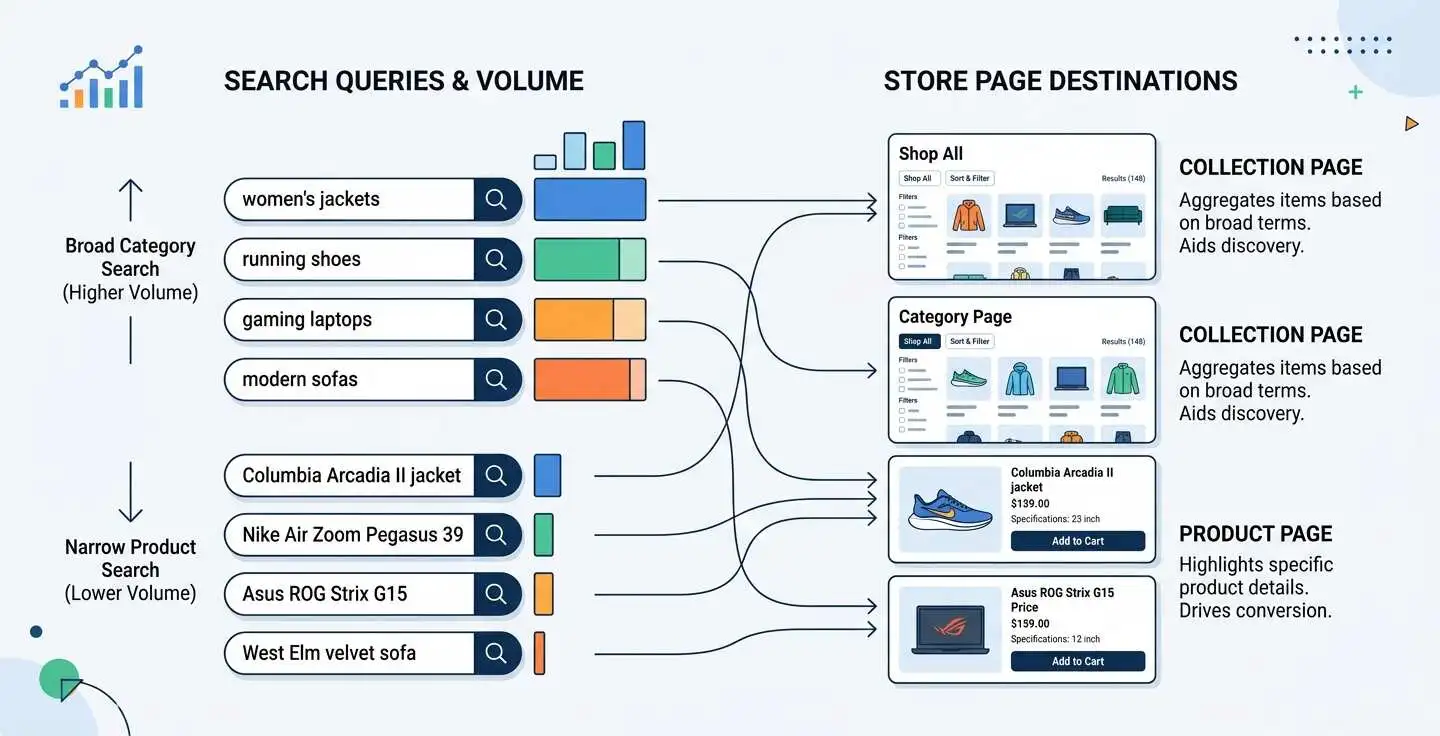
Most beginners research product keywords and ignore category keywords. That is backwards.
Think about how people actually search. Someone who needs boots types "womens waterproof walking boots" long before they type the name of a specific model. Category searches have far more volume and sit earlier in the buying decision. Those searches want a page that shows several options side by side, which is exactly what a collection page is.
How to build your keyword map:
- List the categories a customer would use to describe what you sell. Use their words, not your internal product names.
- Open Search Console and look at Performance > Queries. Any search already showing impressions is a page you can improve rather than create.
- Search your main category terms on Google and read the titles and headings of the pages that rank. They tell you what Google thinks the search means.
- Assign one primary keyword to one page. Two pages targeting the same term compete with each other and both lose.
Avoid the trap of collecting hundreds of keywords. Ten categories mapped properly will outperform a spreadsheet of five hundred terms nobody owns.
Step 5: Optimize your collection pages
If you only do one thing on this Shopify SEO checklist, do this one. Collection pages target broader, higher-intent searches, and in large catalogs they rank for far more keywords and bring in more traffic than product pages do. They are also durable. Products get discontinued, categories stay.
What every collection page needs:
- A clear H1 using the category keyword a shopper would actually search
- Two or three paragraphs of real description, placed where a visitor will read them
- A unique meta title and description
- Internal links to related collections and your best products in that category
- A short, readable URL handle
Write for a person choosing between options. Explain what is in the category, what the differences between the options are, and who each one suits. That is useful content, and it happens to be what ranks.
Two warnings. Do not create collections holding two products, because a near-empty category converts badly and disappears when stock runs low. And do not template the same paragraph across fifty collections with the keyword swapped out. Ten properly written collection pages beat two hundred filled with filler.
One practical note: adding a description section to a collection template often needs theme work on Shopify. Check what your theme supports before you plan a large content project. Our full guide to Shopify collection page SEO walks through the template side, filters, and pagination in detail.
Step 6: Optimize your product pages
Product pages convert, so they are worth getting right even when the search volume behind them is smaller.
Titles and handles
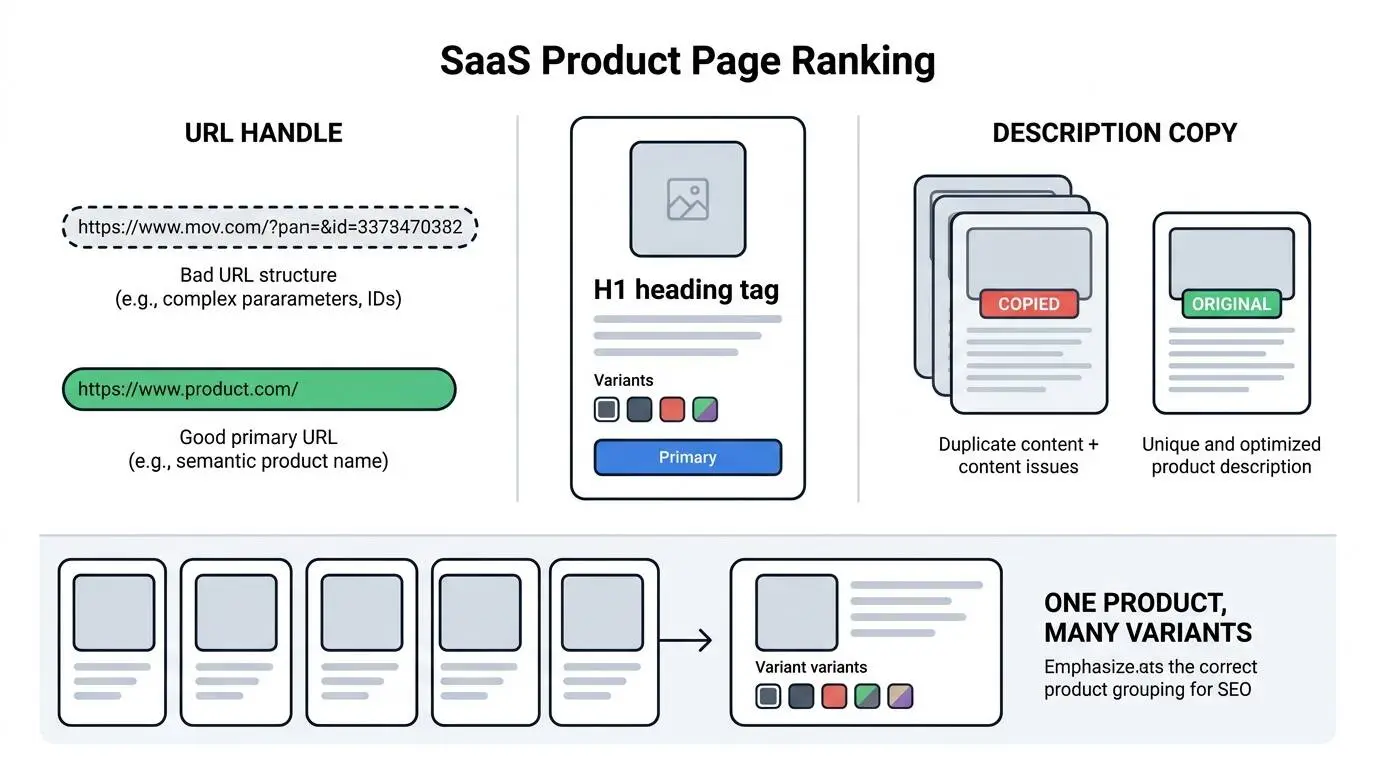
Your product title is the H1. Keep it descriptive and readable. Shopify builds the URL handle from the title, and you can edit it freely.
- Weak:
/products/new-arrival-wireless-noise-cancelling-headphones-2027 - Better:
/products/wireless-noise-cancelling-headphones
Drop dates, drop "new arrival", drop SKU numbers. A handle you have to scroll to read helps nobody.
Older guides suggest title formulas like "Keyword 1 – Shop for Keyword 2 – Store Name". Do not use them. Repeating the keyword twice and burying your brand reads like spam to a shopper and adds nothing for Google.
Write original descriptions
Never paste the manufacturer’s description. Every other store selling that product has pasted the same words, and Google has to pick one of you. It will rarely pick the newest store. This hits dropshipping stores hardest, since the whole catalog arrives with supplier copy attached, and rewriting it is one of the few levers you have to increase Shopify dropshipping sales.
Write what you know about the product. Sizing quirks, materials, what it pairs with, who it suits, what it does not do. That is information a copied spec sheet cannot give, and it is the same information that convinces someone to buy.
Variants versus separate products
One product with variants is usually stronger than five near-identical products. It keeps reviews, links, and ranking signals on a single URL instead of splitting them across five.
Step 7: Write meta titles, descriptions, and alt text
Every page needs its own. Duplicate meta data across a catalog is one of the fastest ways to look low quality.
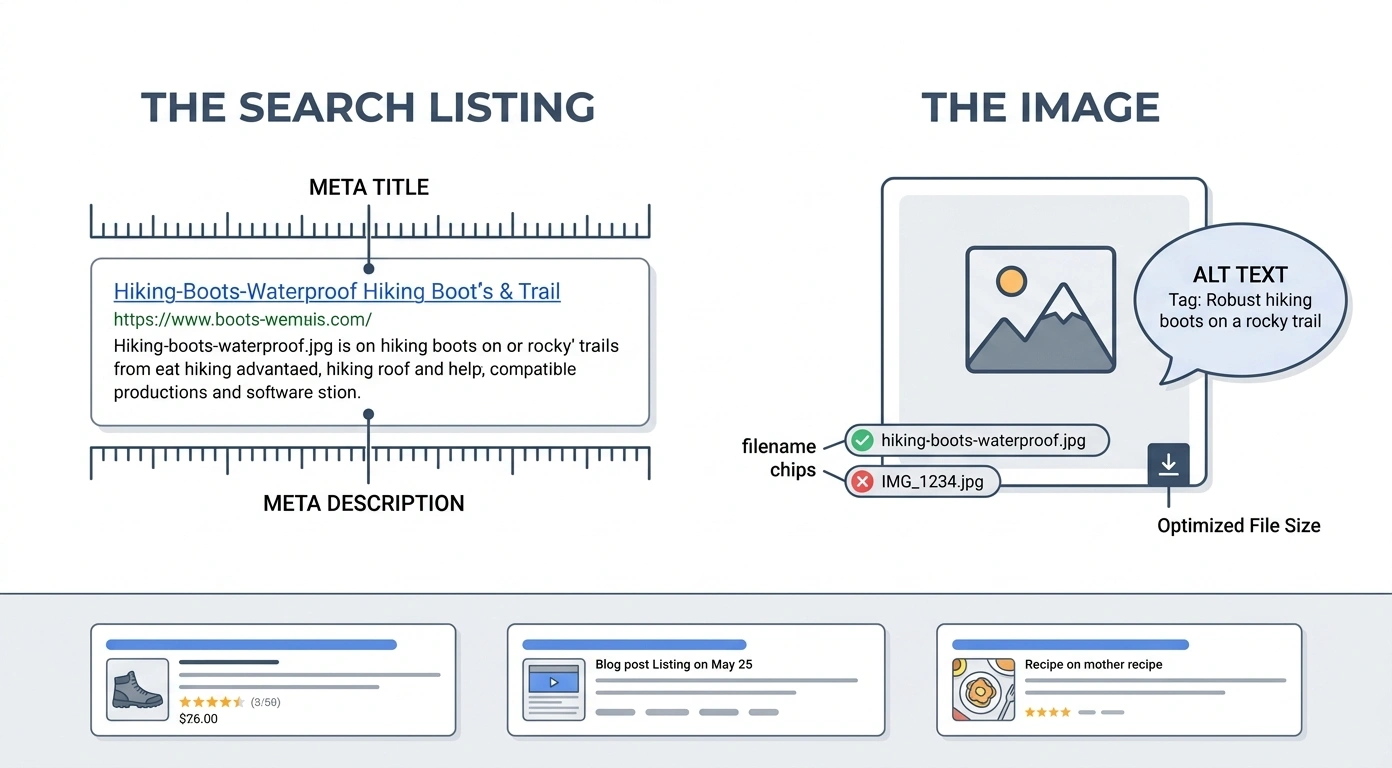
Meta titles: around 60 characters. Lead with the keyword, include your brand at the end if it fits. Write one for every collection and every product that matters.
Meta descriptions: around 155 characters. These do not affect rankings directly, but they decide whether someone clicks. Say what the page offers, not what the page is.
Images: rename the file before you upload it. womens-leather-ankle-boot-black.jpg is better than IMG_4471.jpg. Write alt text that describes the image for someone who cannot see it. Compress images and use WebP where your theme supports it, since images are usually the heaviest thing on a product page. Our guide to image optimization for SEO covers file sizing and formats in more depth.
Step 8: Add structured data and check it renders
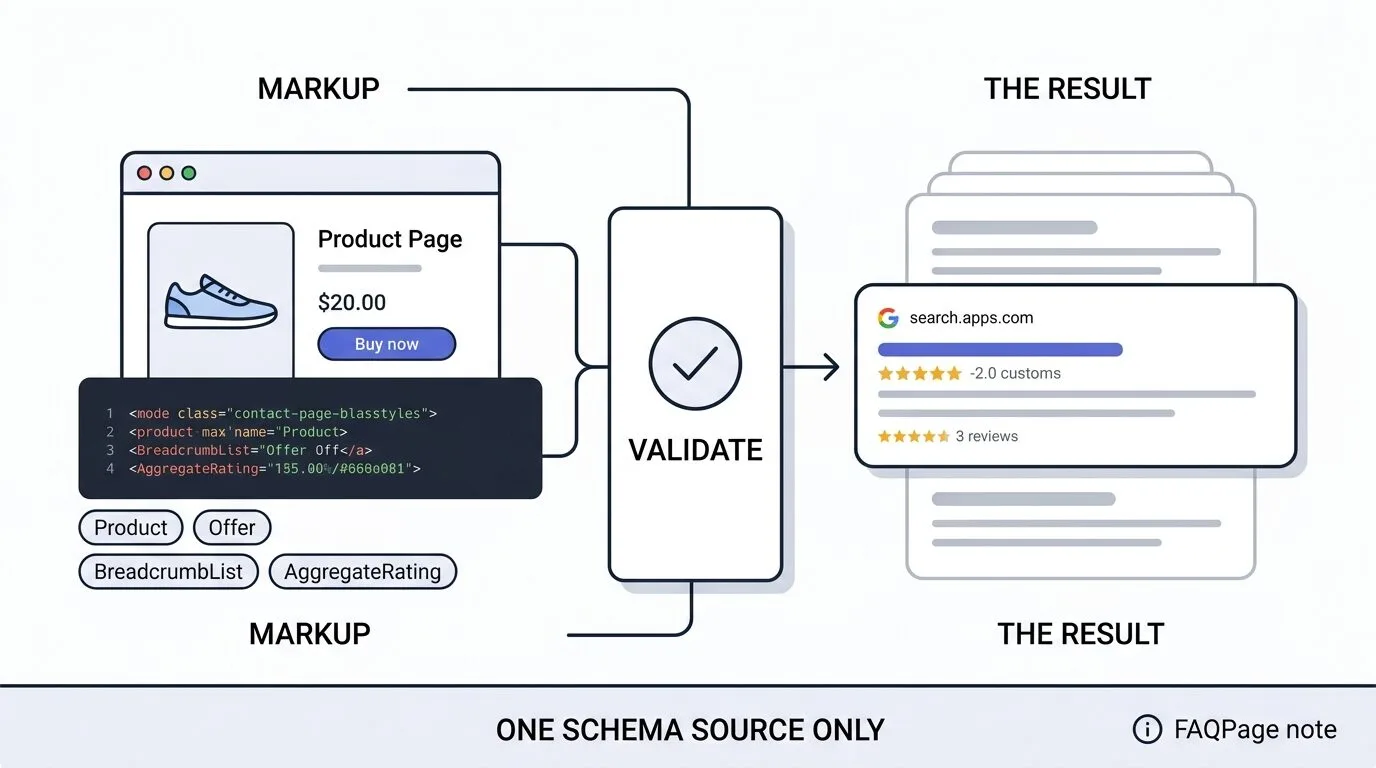
Structured data helps Google understand your pages and can earn you rich results in the search listing. It is useful polish. It is not a ranking requirement, and it will not rescue a thin page.
Add these types:
ProductwithOffer, including price, currency, and availabilityBreadcrumbListon products and collectionsAggregateRatingif you genuinely collect reviewsOrganizationon your homepage
Most modern Shopify themes output product schema already. Check yours in Google's Rich Results Test before you install anything.
Watch for duplicates. Two SEO apps running at once will often each inject their own product schema, which leaves conflicting markup on the page. Pick one source and remove the other.
Skip FAQ markup. FAQPage structured data no longer earns rich results for most sites. You can still write an FAQ section, and you should. Just do not expect the markup to show up in the listing.
Step 9: Fix speed and Core Web Vitals
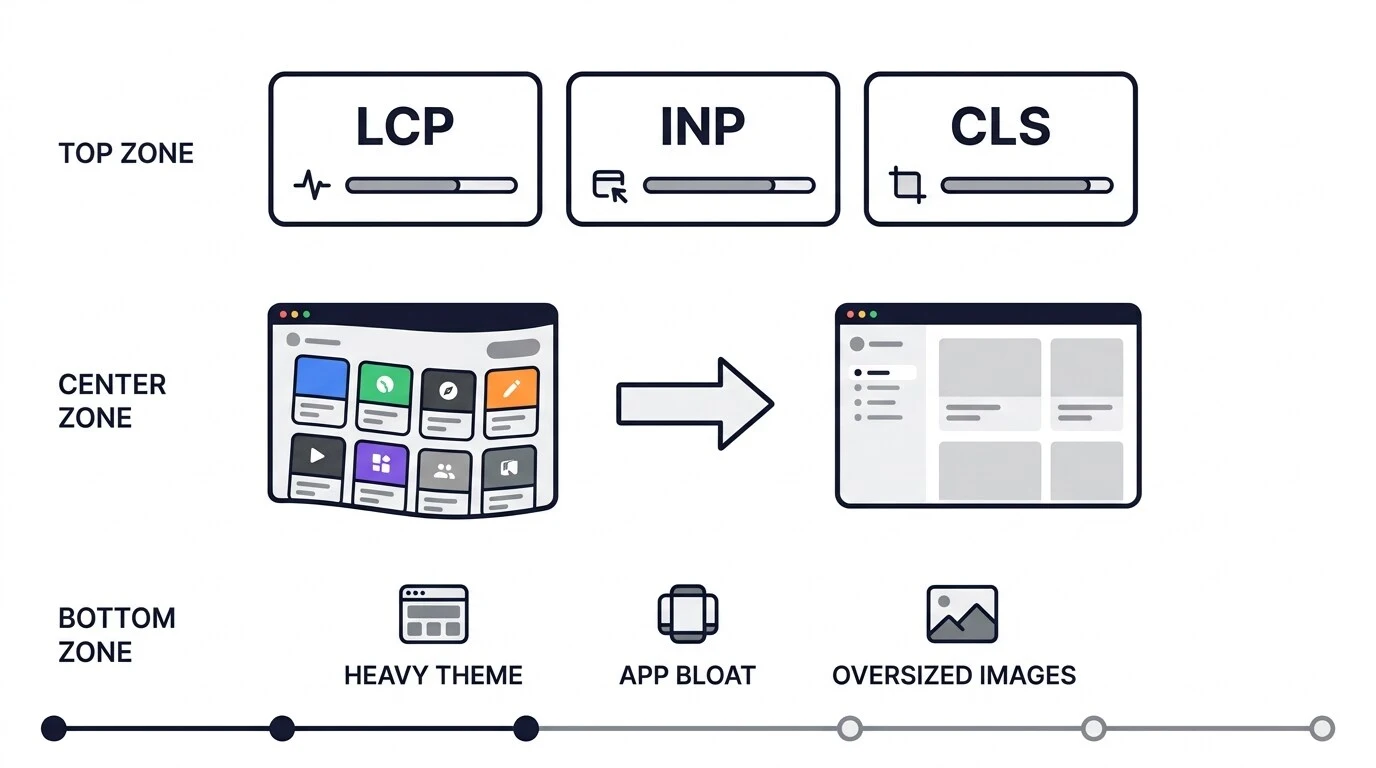
Core Web Vitals measure how a page feels to use. Three numbers matter:
- LCP is how long the main content takes to appear
- INP is how quickly the page responds when someone taps or clicks
- CLS is how much the layout jumps around while loading
On Shopify, slow scores almost always trace back to the same three causes.
Heavy themes. Some themes load far more than they need to. If yours is old or heavily modified, test a lighter one on a duplicate before committing.
App bloat. Every app you install adds scripts to the front end. Go through your installed apps and remove the ones you are not actively using. Removing an app does not always remove its theme code, so check for leftovers.
Oversized images. Resize images to the dimensions they will actually display at before uploading. A 4000px image scaled down in the browser still downloads at full weight.
Test with PageSpeed Insights and watch the Core Web Vitals report in Search Console, which uses data from real visitors. Our step-by-step walkthrough on how to increase Shopify store speed covers the theme and app fixes in more detail than this checklist has room for. Retest after every theme change or app install. If the fixes go beyond what you can do in the admin, our website speed optimization service handles the theme-level work.
Step 10: Publish content that supports your catalog
A blog only helps if it sends people toward things you sell.
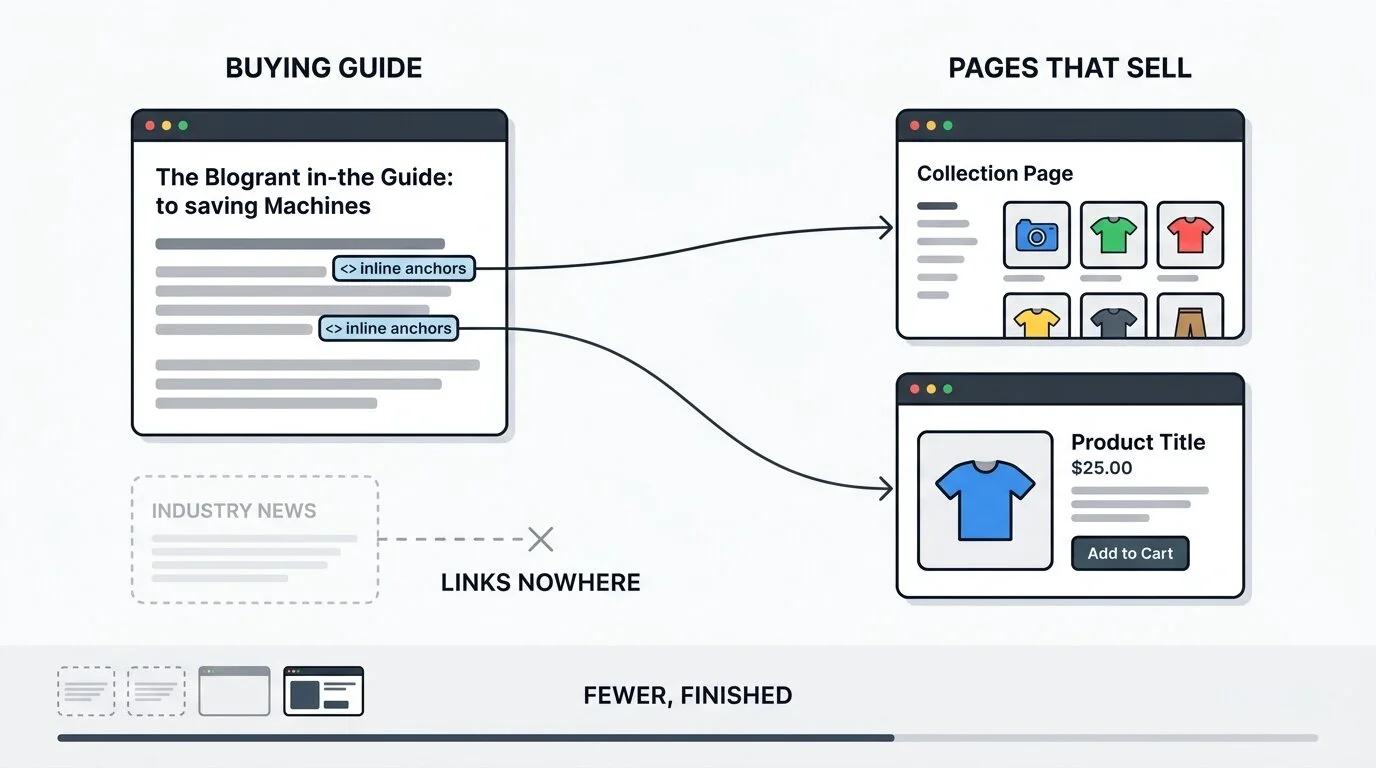
Write buying guides, comparisons, sizing guides, and care guides. "How to choose walking boots for wet ground" earns the search and sends the reader into the boots collection. A post about industry news does neither.
Every post should link into at least one collection or product using descriptive anchor text. That is how a blog passes value to the pages that make money, instead of collecting traffic that goes nowhere.
Publish fewer posts and finish them properly. Two guides that fully answer a buyer's question will beat twenty thin posts every time.
Step 11: Get your products into AI shopping surfaces
This part did not exist when most Shopify SEO guides were written, and it is now a real traffic channel.
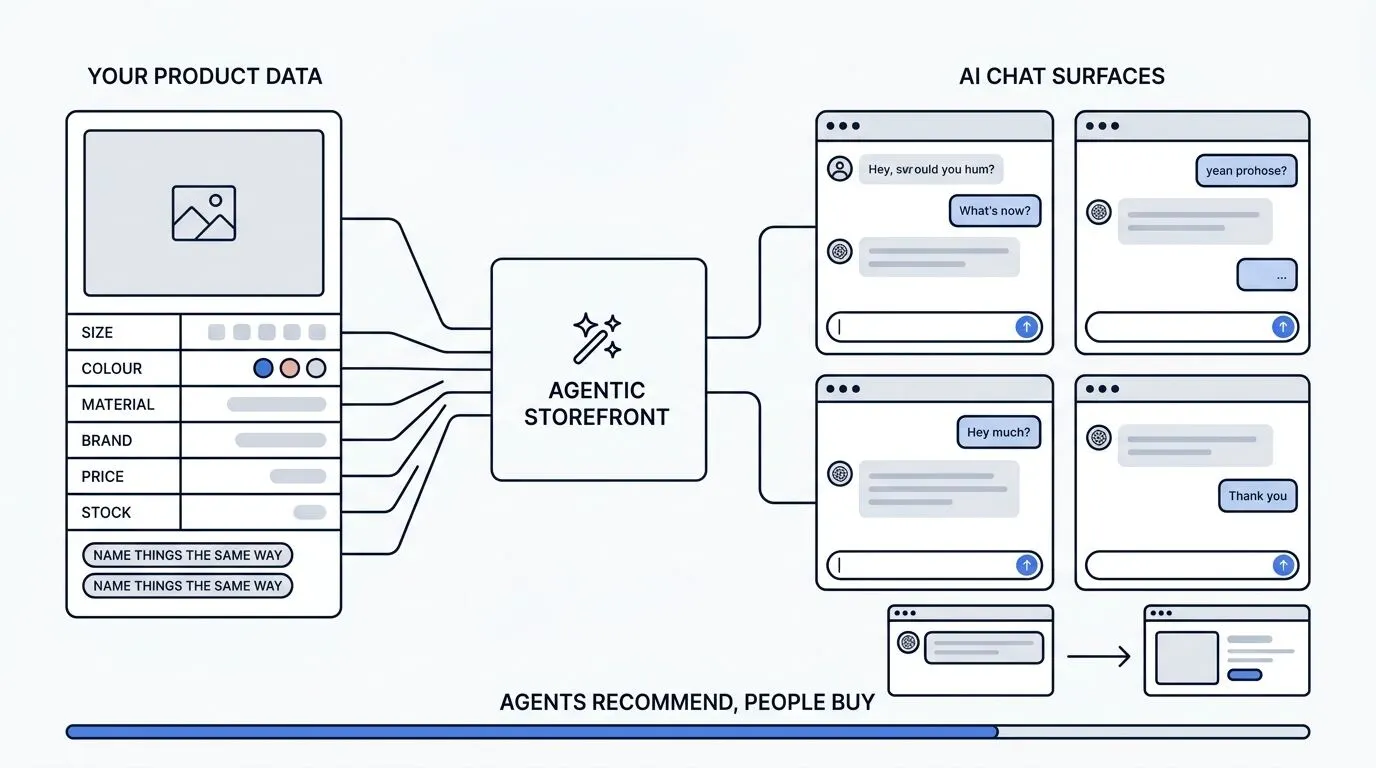
Shopify's Agentic Storefronts push your product data into AI assistants including ChatGPT, Microsoft Copilot, Google AI Mode, and Gemini, all managed from the Shopify admin. Two open standards sit underneath it: the Agentic Commerce Protocol, built by OpenAI and Stripe, and the Universal Commerce Protocol, co-developed by Shopify and Google. Eligible merchants selling into the US were enrolled automatically, so your products may already be appearing in AI shopping results without you doing anything.
What to check in your admin:
Go to Settings > Sales channels and confirm the Agentic Storefronts channel is on. The agentic dashboard shows which searches your products appeared in and flags gaps in your listings, such as incomplete descriptions or missing images.
What you control:
AI shopping assistants work from your structured product data, not your marketing copy. Clean data wins here.
- Fill in every product attribute, including size, colour, material, and brand
- Use consistent naming. If one product says "Medium" and another says "M", filtering breaks
- Keep pricing and inventory accurate, since outdated data gets your product dropped from results
- Upload complete image sets
- Finish your shop policies, including shipping and returns
On checkout: OpenAI has stepped back from standalone Instant Checkout inside ChatGPT and shifted its focus to product discovery. For now, treat AI assistants as a discovery channel. Agents recommend, and people buy on your site.
The practical takeaway is simple. The same clean, complete product data that helps a shopper decide is what makes your products usable to an AI assistant. There is no separate optimization track.
Step 12: Earn links and mentions
Links still matter, and most of the advice around them is noise. Three approaches work for a store.
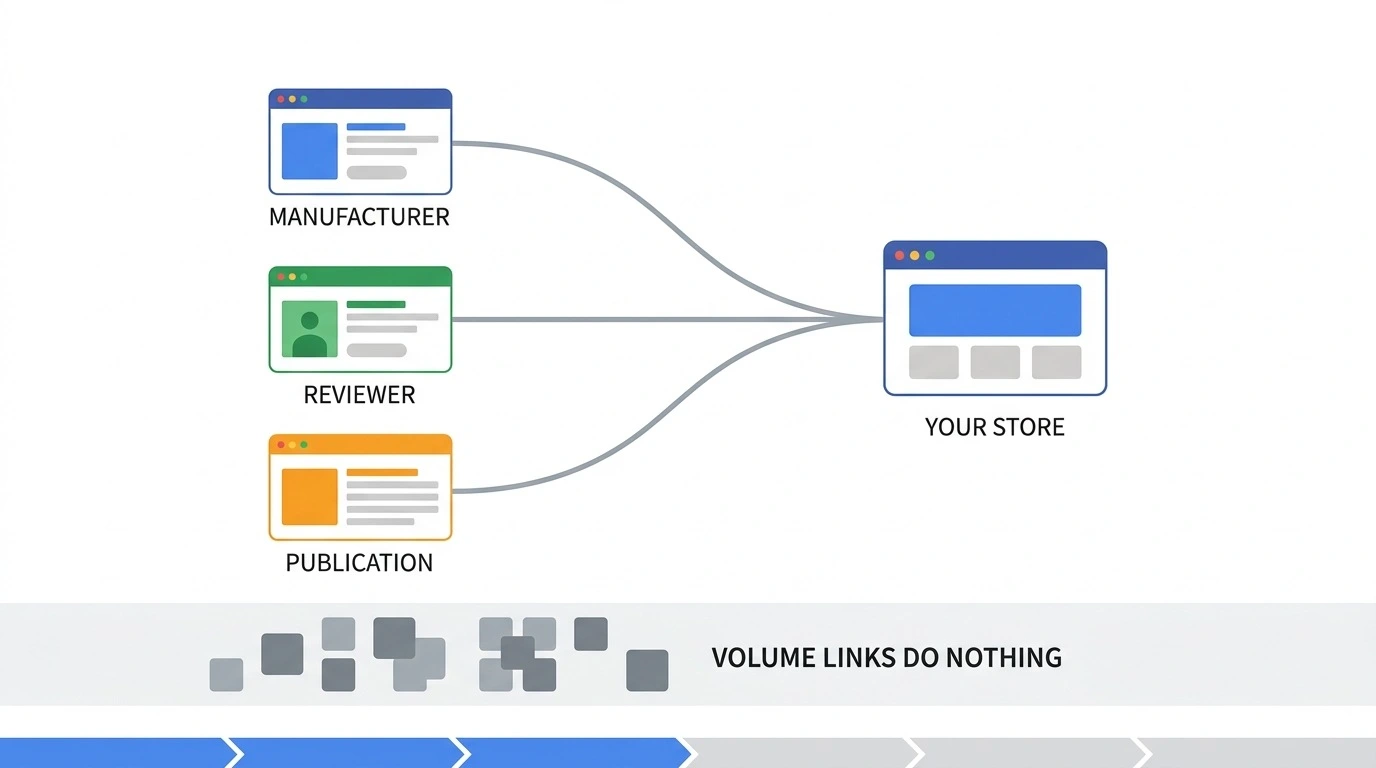
Manufacturer and stockist pages. If you resell other brands, ask to be listed on their "where to buy" page. This is the easiest relevant link most stores can get, and many never ask.
Product seeding. Send products to reviewers and creators who already cover your category. A review that someone actually wanted to write brings a link and buyers at the same time.
Real publications. Contribute something useful to a site your customers already read. A guest contribution works when the publication is relevant and the piece is worth reading. It does nothing when the site exists only to publish guest posts. If you want this handled properly, see our guest post service.
Ignore anything sold by volume. A hundred links from sites nobody reads will not move a store that has thin collection pages.
Step 13: Measure, then repeat
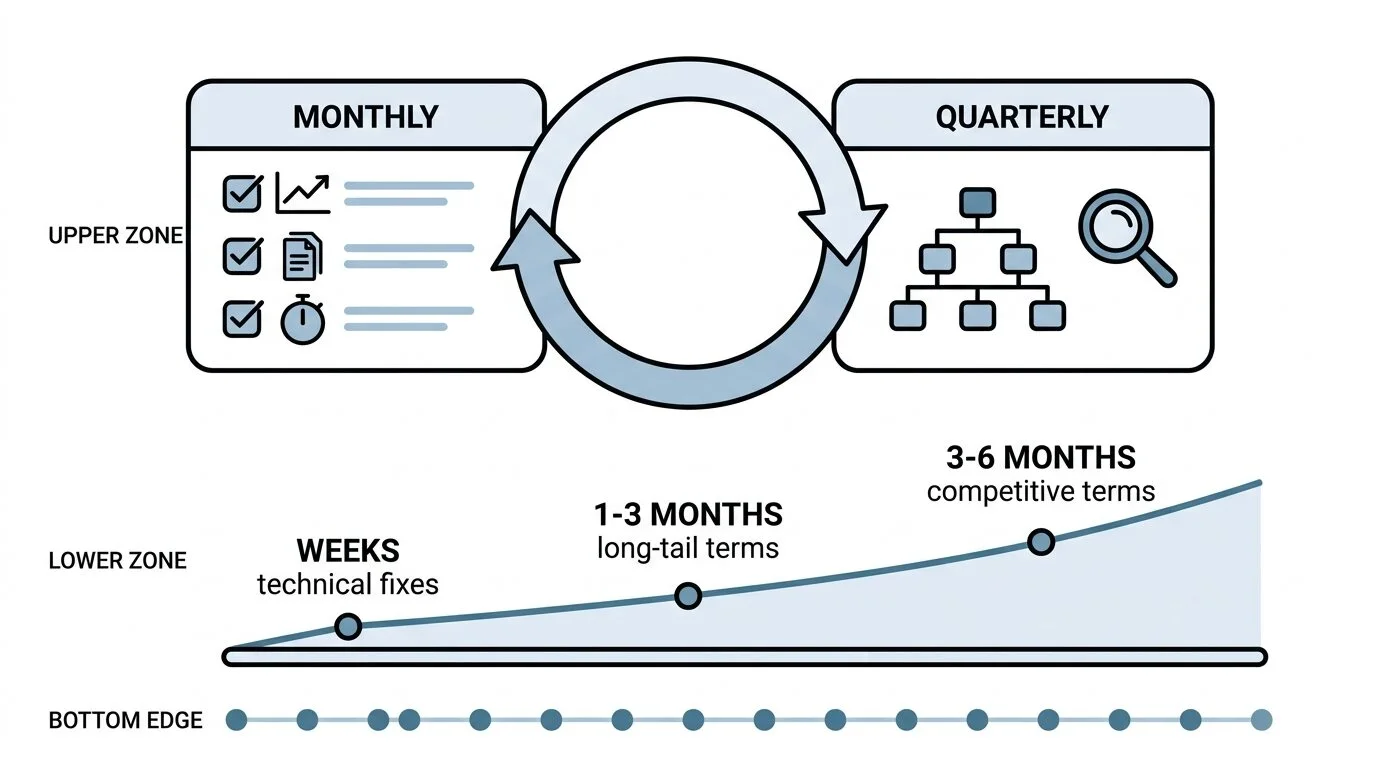
Every month, open Search Console and check three things: which queries gained or lost clicks, whether any pages fell out of the index, and whether Core Web Vitals changed.
Every quarter, run a full pass on the store. Recrawl for broken links and redirect chains, review your collection copy, and check that new products got titles and descriptions.
Set realistic expectations. Technical fixes like indexing and meta data can show up in a few weeks. Long-tail and brand searches move within one to three months. Competitive category terms usually take three to six months, and longer in crowded categories. Anyone promising faster than that is guessing.
Shopify SEO mistakes beginners keep making
- Chasing AMP, which is no longer relevant for ecommerce
- Pasting manufacturer descriptions onto product pages
- Publishing collections that hold two or three products
- Stuffing the same keyword into the title twice
- Installing three SEO apps at once and leaving conflicting schema behind
- Editing
robots.txtwith no specific problem to fix - Letting tag and vendor pages get indexed alongside real collections
- Writing blog posts that never link to anything you sell
Tools worth using
Free and genuinely necessary:
- Google Search Console for queries, indexing, and Core Web Vitals
- Google Analytics 4 for revenue by landing page
- PageSpeed Insights for speed testing
- Shopify Search & Discovery, Shopify's own free app, for on-site search filters, synonyms, and search analytics
Optional, once you have the basics covered:
- A crawler such as Screaming Frog for finding broken links and duplicate meta data at scale
- A keyword research tool for volume estimates
On paid SEO apps: they speed up bulk editing and some add schema. None of them write your collection copy or fix a thin catalog. Install one only when you know which job it is doing, and uninstall it properly, since leftover theme code from a removed SEO app is a common and hard-to-spot problem.
Frequently asked questions
Is Shopify good for SEO in 2027?
Yes. Shopify handles canonical tags, sitemaps, HTTPS, and mobile rendering automatically, which gives you a strong technical starting point. Its real limits are the fixed URL prefixes and the empty collection pages it ships with, and both are manageable.
How long does Shopify SEO take to work?
Technical fixes can show results in a few weeks. Long-tail keywords typically move in one to three months. Competitive category terms usually take three to six months of consistent work.
Which pages should I optimize first on Shopify?
Collection pages. They target the category searches with the most commercial volume, and most stores leave them as bare product grids.
Can I change Shopify's URL structure?
No. The /products/, /collections/, /pages/, and /blogs/ prefixes are fixed. You can edit the handle at the end of the URL, and you control internal linking and canonical signals, which is where the gains actually are.
Does Shopify add canonical tags automatically?
Mostly, yes. Shopify outputs canonical tags on products, collections, and articles by default, and handles filtered and variant URLs. You still need to verify they render correctly in your theme and make sure your internal links agree with them.
Do I need an SEO app for Shopify?
No. Everything on this Shopify SEO checklist can be done in the Shopify admin and your theme. An app saves time on bulk edits once your catalog gets large.
Why are my Shopify products not showing up on Google?
Check three things in order. Confirm the page is indexed in Search Console, confirm it is not blocked or canonicalized to a different URL, and confirm the page has enough unique content to be worth indexing. New stores also simply need time to be crawled.
Faisal Mustafa is an Online Market Specialist. He has been providing result oriented quality SEO services to clients worldwide successfully since 2008. He has hundreds of reviews and feedbacks on marketing forums. He is the admin of SEO viser team and a successful online marketer.
OUR SERVICES



Request a free quote
We offer professional SEO services that help websites increase their organic search score drastically in order to compete for the highest rankings even when it comes to highly competitive keywords.
More from our blog
See all posts